FAB Internet Banking UAE – Login, Registration & Online Banking Guide (2026)
Managing your finances no longer requires frequent visits to a bank branch. With FAB Internet Banking, you can securely access your accounts, transfer money, pay bills, manage cards, download bank statements, and monitor transactions from anywhere in the world. Whether you’re using a desktop computer, laptop, or tablet, First Abu Dhabi Bank’s online banking platform provides a fast and convenient way to handle everyday banking.
As the largest bank in the UAE, First Abu Dhabi Bank (FAB) offers a comprehensive internet banking service for both personal and business customers. From checking your account balance to scheduling transfers and paying your credit card bill, almost every banking task can be completed online within minutes.
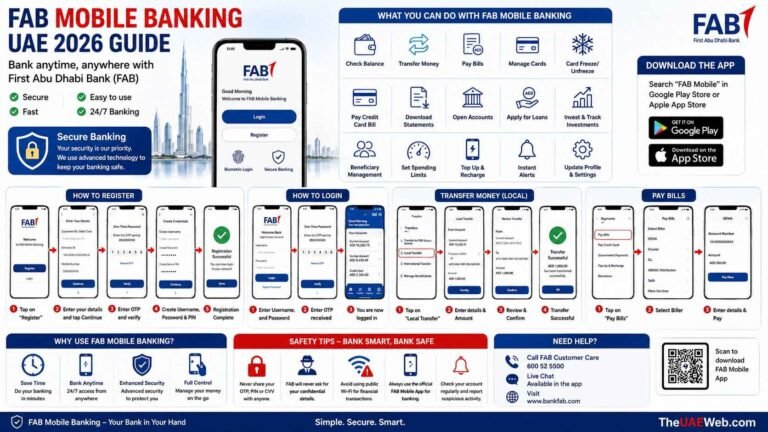
If you’re a new customer, registration is simple and can usually be completed without visiting a branch. Existing users can log in securely using their Customer ID, username, password, and One-Time Password (OTP). The platform also includes advanced security features such as biometric verification, OTP authentication, and encrypted login sessions to protect your banking information.
In this guide on Theuaeweb.com, you’ll learn how to register for FAB Internet Banking, log in securely, transfer money, download account statements, troubleshoot common login problems, and use the platform safely.
Official FAB Internet Banking
Use the official First Abu Dhabi Bank digital banking services below.
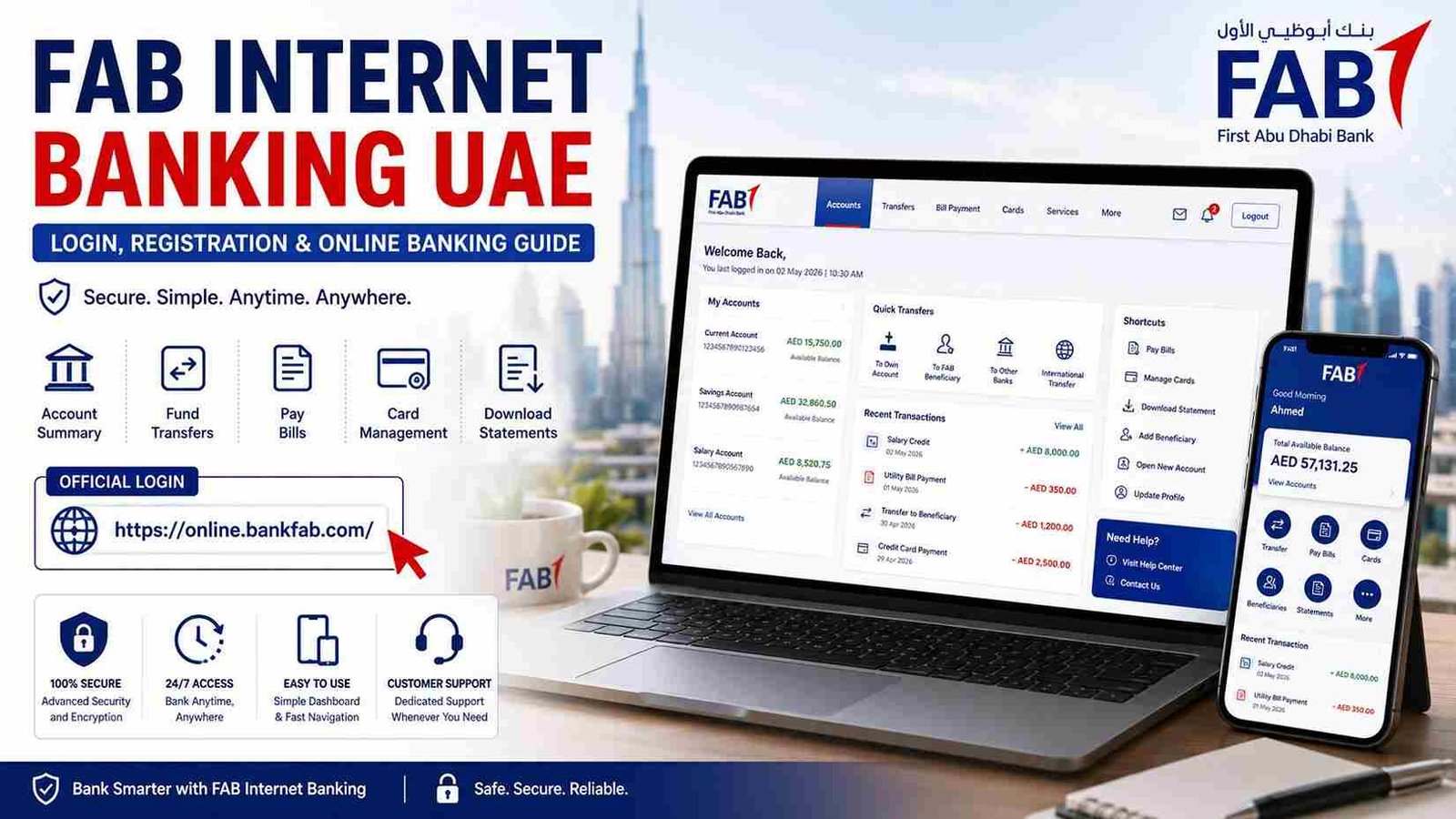
Official Login: https://online.bankfab.com/
Official FAB Website: https://www.bankfab.com/
FAB Mobile Banking: https://www.bankfab.com/en-ae/personal/digital-banking/mobile-banking
Safety Tip: Always access FAB Internet Banking through the official website. Never click login links received via SMS, WhatsApp, email, or social media. FAB will never ask for your password, PIN, or OTP.
What Is FAB Internet Banking?
FAB Internet Banking is the bank’s secure online banking platform that allows customers to access their accounts through any web browser without installing additional software.
Once logged in, customers can manage almost every aspect of their banking relationship from one dashboard.
Some of the most popular services include:
- View account balances
- Check transaction history
- Transfer money locally and internationally
- Pay utility bills
- Pay FAB credit card bills
- Download account statements
- Open selected banking products
- Manage debit and credit cards
- Update personal information
- Request banking services online
Because the service operates online, customers can access their accounts 24 hours a day from almost anywhere with an internet connection.
Key Features of FAB Internet Banking
FAB continues to improve its online banking platform by introducing new digital services each year.
Some of the main features include:
- Real-time account balance updates
- Secure online transfers
- Domestic and international fund transfers
- Credit card management
- Utility and government bill payments
- Beneficiary management
- Account statement downloads
- Card activation and controls
- Secure OTP verification
- Multi-layer security protection
- Online service requests
- Profile and contact detail management
These features reduce the need to visit a physical branch for routine banking tasks.
How to Register for FAB Internet Banking
If you’re a new FAB customer, registering for Internet Banking only takes a few minutes. Most customers can complete the registration online without visiting a branch.
Before you begin, make sure you have:
- Your FAB Debit Card or Account Number
- Registered mobile number
- Emirates ID (if required)
- Active email address
Step 1: Visit the Official FAB Internet Banking Portal
Open the official FAB Internet Banking website using your preferred web browser.
Always ensure the website address begins with https:// and belongs to bankfab.com before entering your banking information.
Step 2: Click Register
On the login page, select Register or New User Registration.
You’ll be guided through the online registration process.
Step 3: Verify Your Identity
Enter the requested information, which may include:
- Customer ID
- Debit Card Number
- Account Number
- Registered mobile number
FAB will verify your details securely.
Step 4: Complete OTP Verification
A One-Time Password (OTP) will be sent to your registered mobile number.
Enter the OTP exactly as received.
Step 5: Create Your Login Credentials
Choose:
- Username
- Strong password
- Security questions (if prompted)
Your password should contain uppercase letters, lowercase letters, numbers, and special characters for maximum security.
Step 6: Registration Complete
Once verification is successful, your FAB Internet Banking account becomes active.
You can immediately log in and start using online banking services.
How to Log in to FAB Internet Banking
Logging into your account is simple and usually takes less than a minute.
Step 1: Open the Official Login Page
Visit the official FAB Internet Banking login page.
Never use links received through emails or text messages.
Step 2: Enter Your Username or Customer ID
Type your registered username or Customer ID.
Double-check the information before proceeding.
Step 3: Enter Your Password
Input your secure login password.
Avoid saving passwords on public or shared computers.
Step 4: Complete OTP Verification
Depending on your security settings or login device, FAB may send an OTP to your registered mobile number.
Enter the code to continue.
Step 5: Access Your Dashboard
After successful authentication, you’ll reach your online banking dashboard where you can:
- View account balances
- Check recent transactions
- Transfer money
- Pay bills
- Manage debit and credit cards
- Download account statements
- Access banking services
FAB Internet Banking Dashboard Overview
The dashboard is designed to give customers quick access to all major banking services from a single screen.
After logging in, you’ll typically find:
- Account summary
- Savings and current account balances
- Credit card information
- Recent transactions
- Transfer shortcuts
- Bill payment options
- Investment accounts (if applicable)
- Loan details
- Card management
- Notifications and alerts
Everything is organized into easy-to-use sections, allowing customers to complete most banking tasks in just a few clicks.
How to Transfer Money Using FAB Internet Banking
One of the most popular features of FAB Internet Banking is online money transfers.
You can transfer funds:
- Between your own FAB accounts
- To another FAB customer
- To any UAE bank
- Internationally (supported countries)
Steps to Transfer Money
- Log in to FAB Internet Banking.
- Select Transfers.
- Choose the transfer type.
- Select or add a beneficiary.
- Enter the transfer amount.
- Review the payment details.
- Complete OTP verification.
- Submit the transaction.
Many local transfers are processed instantly, while international transfers may take one or more business days depending on the destination bank.
How to Add a Beneficiary
Before sending money to another account, you may need to add the recipient as a beneficiary.
The process is straightforward:
- Go to Beneficiaries.
- Select Add New Beneficiary.
- Enter the recipient’s account details.
- Verify using OTP.
- Wait for beneficiary activation if required.
Once activated, future transfers become much faster.
How to Pay Bills Through FAB Internet Banking
FAB Internet Banking allows customers to pay a wide range of bills without visiting a payment center. Payments can usually be completed within minutes.
You can pay for services such as:
- Electricity bills
- Water bills
- Mobile bills
- Internet services
- Credit card payments
- Government service fees
- School fees (where supported)
Steps to Pay a Bill
- Log in to FAB Internet Banking.
- Select Bill Payments.
- Choose the service provider.
- Enter the required account or customer number.
- Confirm the payment amount.
- Verify using OTP.
- Submit the payment.
Always review the payment details before confirming the transaction.
How to Download Your FAB Bank Statement
Account statements are available online and can be downloaded at any time.
Steps to Download a Statement
- Log in to FAB Internet Banking.
- Select the account you want to view.
- Click Statements.
- Choose the required month or date range.
- Download the statement in PDF format.
Electronic statements are useful for:
- Visa applications
- Salary verification
- Loan applications
- Financial records
- Business accounting
Manage Your Debit and Credit Cards
FAB Internet Banking provides several self-service card management options.
Customers can:
- Activate a new debit card
- Activate a new credit card
- Freeze or unblock cards
- Replace lost cards
- Report stolen cards
- Change card limits
- Enable or disable international transactions
- View card transactions
- Pay credit card bills
Many of these services are completed instantly without contacting customer support.
Update Your Personal Information
Keeping your contact information up to date helps ensure you receive OTPs, transaction alerts, and important banking notifications.
Using FAB Internet Banking, you may be able to update:
- Mobile number
- Email address
- Residential address
- Employment details (where applicable)
- Communication preferences
Some updates may require additional verification or a visit to a branch.
Forgot Your FAB Internet Banking Password?
If you can’t log in because you’ve forgotten your password, you can reset it online.
Steps to Reset Your Password
- Open the FAB Internet Banking login page.
- Click Forgot Password.
- Enter your Customer ID or Username.
- Verify your identity using OTP.
- Create a new secure password.
- Log in using your new credentials.
Choose a strong password that is difficult to guess and avoid using personal information.
Why Is FAB Internet Banking Not Working?
Occasionally, customers may experience login or service issues.
Some common reasons include:
Incorrect Username or Password
Double-check your login credentials. If necessary, reset your password using the official recovery option.
Temporary System Maintenance
FAB occasionally performs scheduled maintenance to improve security and system performance.
If the website is temporarily unavailable, wait a few minutes and try again.
Slow Internet Connection
Ensure your internet connection is stable before attempting to log in.
Browser Issues
Clear your browser cache and cookies or try another supported browser.
Account Locked
Multiple unsuccessful login attempts may temporarily lock your account.
Contact FAB Customer Care if you cannot regain access.
FAB Internet Banking vs FAB Mobile Banking
Both services allow customers to manage their finances digitally, but each is designed for different situations.
| Feature | FAB Internet Banking | FAB Mobile Banking |
|---|---|---|
| Device | Desktop & Laptop | Smartphone & Tablet |
| Login | Web Browser | Mobile App |
| Money Transfers | Yes | Yes |
| Bill Payments | Yes | Yes |
| Download Statements | Yes | Yes |
| Card Management | Yes | Yes |
| Biometric Login | No | Yes |
| Best For | Full banking tasks | Everyday banking on the go |
Many customers use both services together—Internet Banking for detailed account management and the FAB Mobile App for quick, everyday transactions.
Security Features of FAB Internet Banking
First Abu Dhabi Bank uses multiple security layers to help protect customer accounts.
Security features include:
- Secure HTTPS encryption
- One-Time Password (OTP) authentication
- Automatic logout after inactivity
- Fraud monitoring systems
- Device verification
- Secure login sessions
- Transaction alerts
- Multi-factor authentication for selected services
These technologies help reduce the risk of unauthorized access while providing a secure online banking experience.
Safety Tips for Using FAB Internet Banking
Protecting your online banking account should always be a priority.
Follow these best practices:
- Always use the official FAB website.
- Never share your password or OTP.
- Avoid logging in using public Wi-Fi.
- Keep your browser updated.
- Log out after every session.
- Regularly monitor your account activity.
- Enable SMS and email alerts.
- Report suspicious transactions immediately.
Important: FAB will never ask for your password, ATM PIN, OTP, CVV, or full card number through phone calls, SMS, WhatsApp, or email. If anyone requests these details while claiming to represent the bank, do not respond and contact FAB using its official customer care channels immediately.